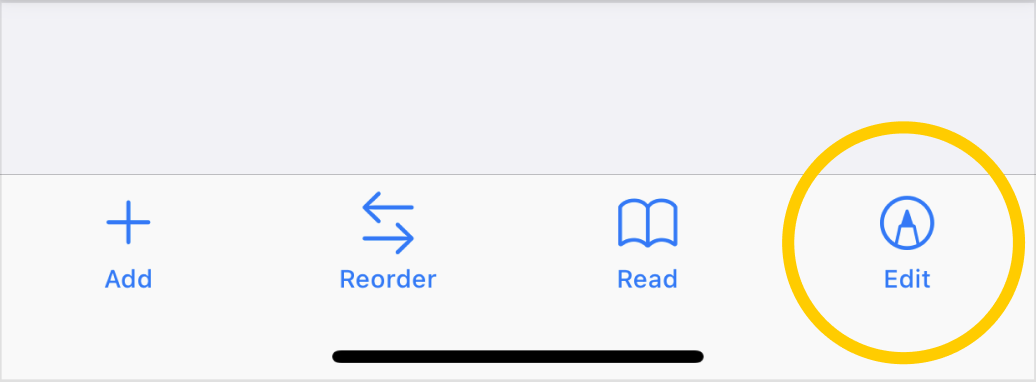
- Open or import a PDF document to the app and on the document preview screen;
- Tap on the
 (edit) button:
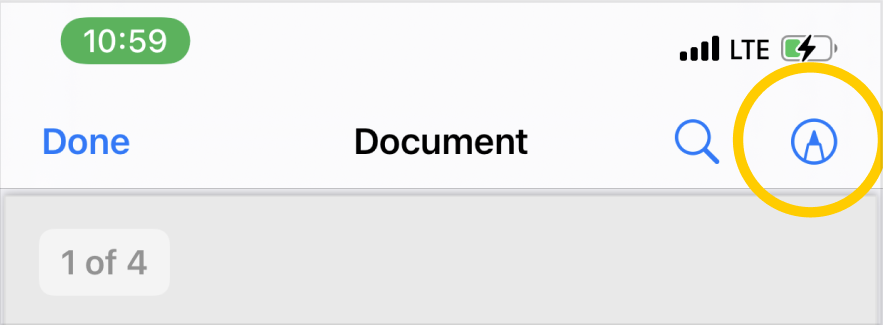
- On the page that opens, tap on the same edit button in the upper right corner again:
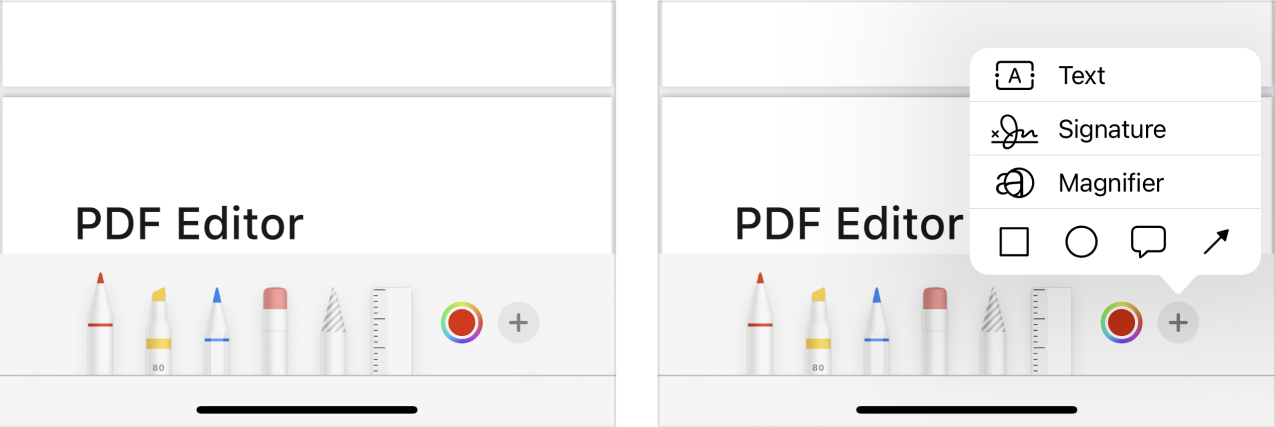
- You will see editing and annotation tools, tap on the
 button to open an additional menu with tools and select any needed tool. You can choose from a pencil, a felt-tip pen, a pen, an eraser, a ruler for creating precise straight lines, tools for adding shapes (circle, square, "note" shape, arrows), you can add text and add a magnifying glass to enlarge any parts of the document:
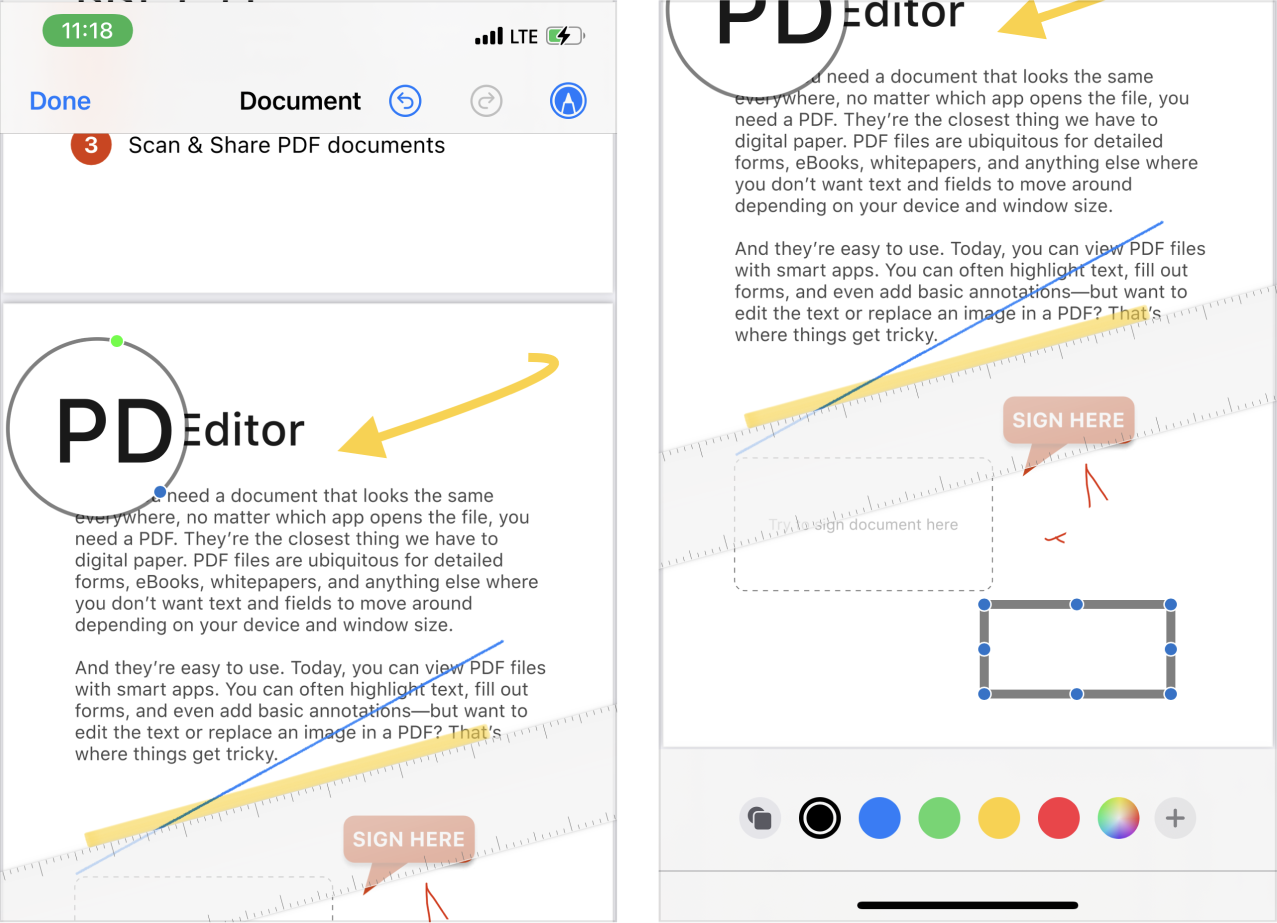
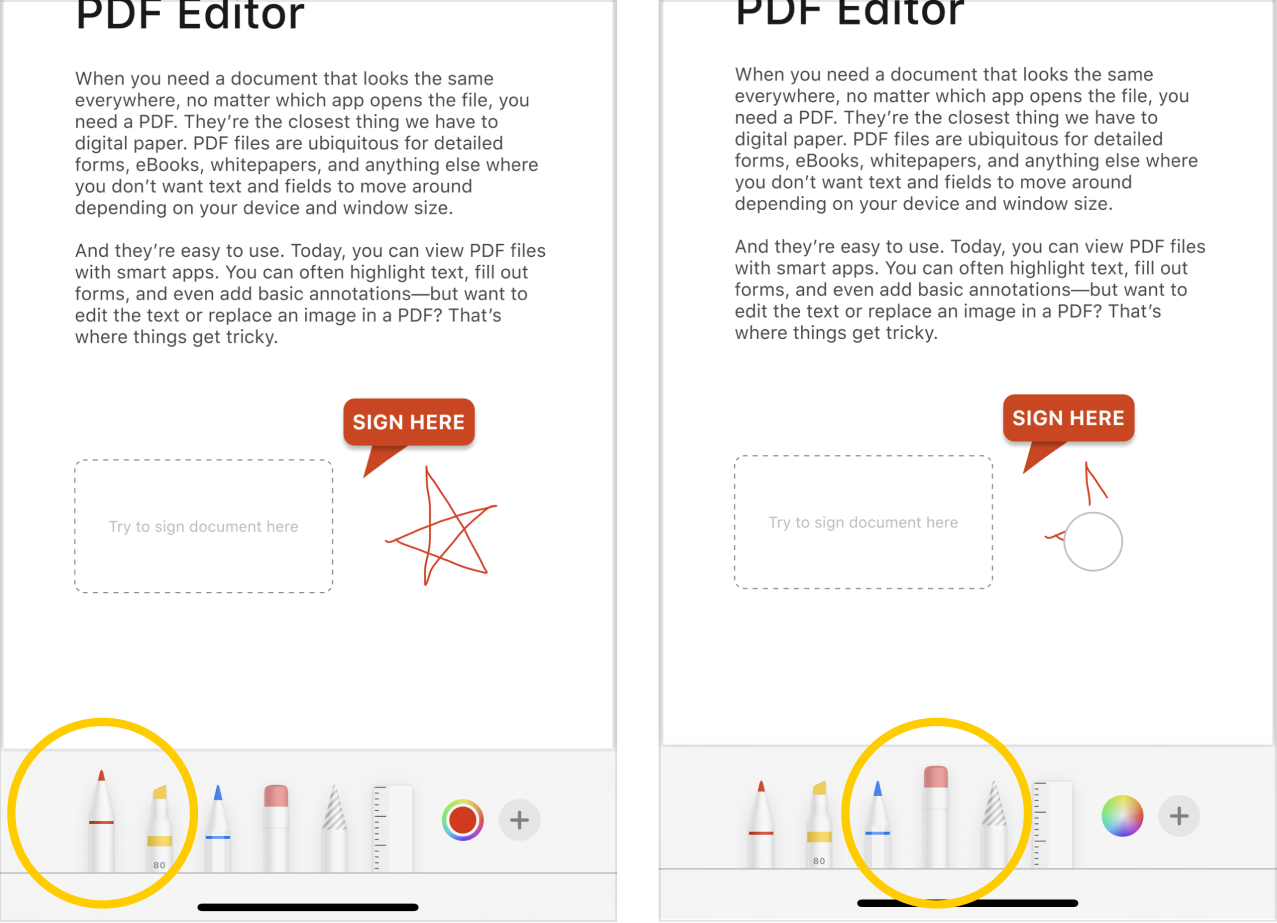
- For example, you can draw any shapes or underline something in the text using the pen tool and then erase the excess with the eraser:
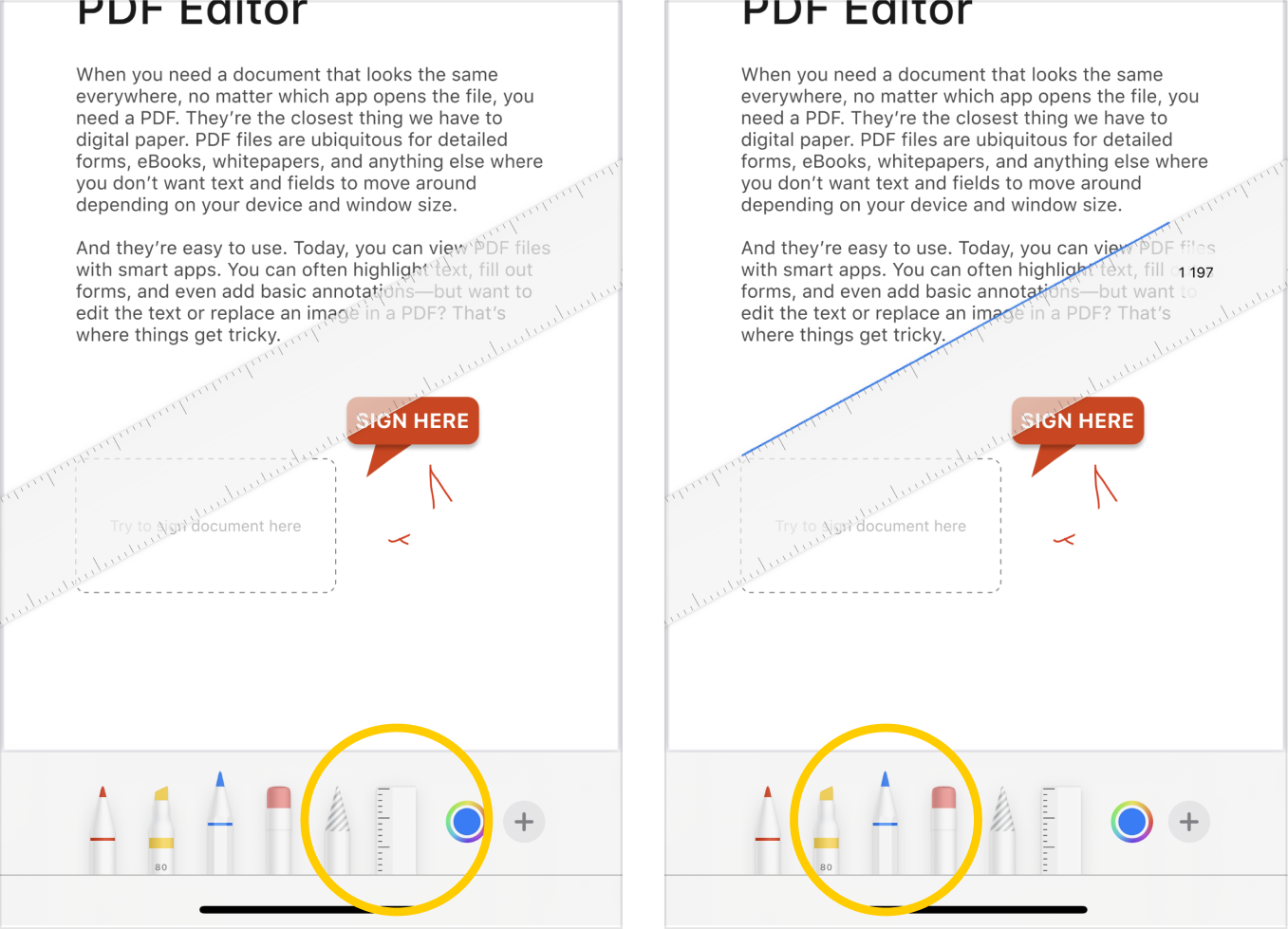
- And using the ruler and pencil tool, you can for example make a perfectly straight line. You can change the angle of the ruler with 2 fingers:
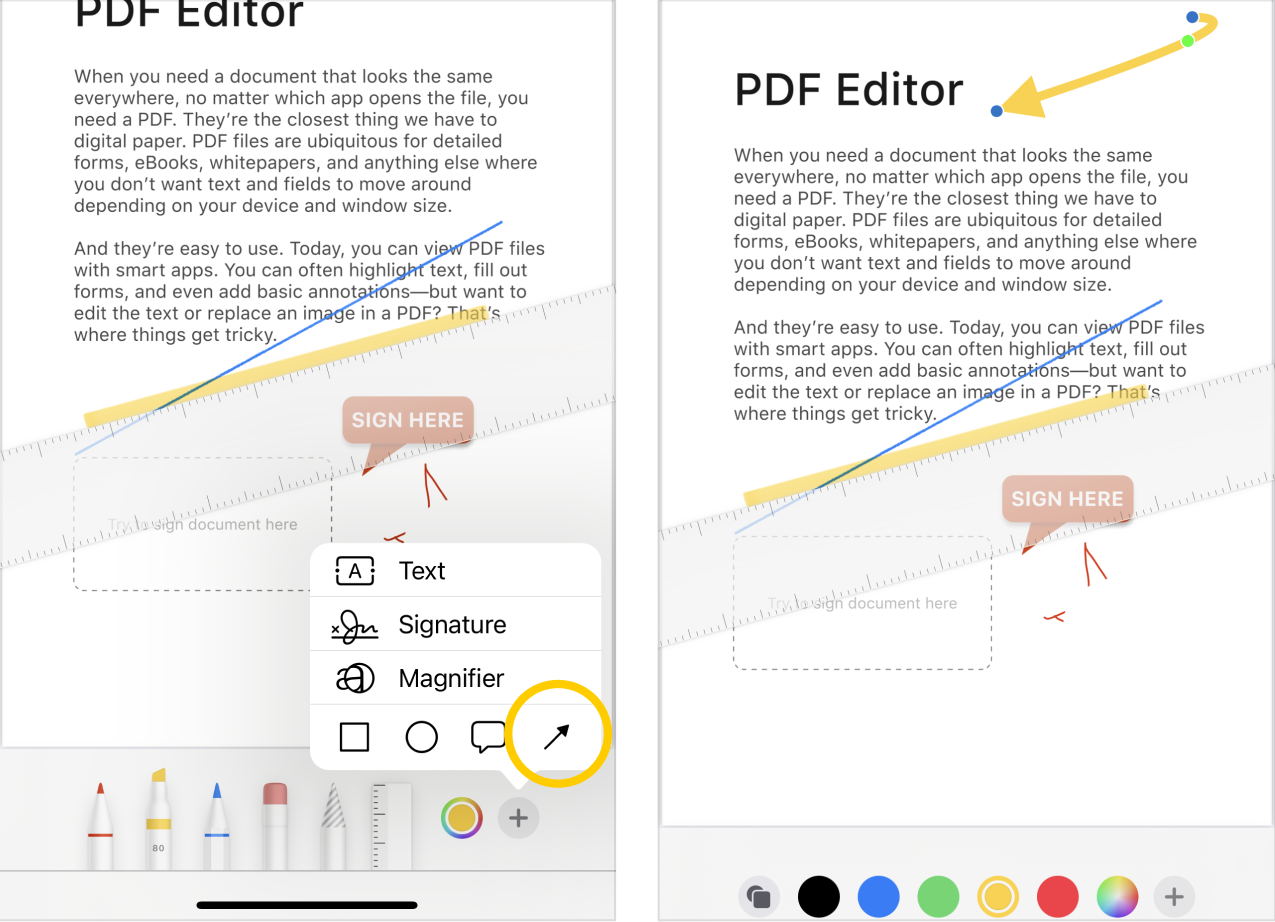
- With the arrow tool, you can mark something important in the document. To select the arrow tool, you need to click on the button and select the arrow in the additional tools menu, you can also change the position, color, and angle of the arrow in the additional menus:
- With the Magnifier tool, you can highlight something important in the document by enlarging that area. And with the help of the square and circle tools, you can select some areas with perfectly even frames: