- Open or import a PDF document to the app and on the document preview screen;
- Tap on the
 button:
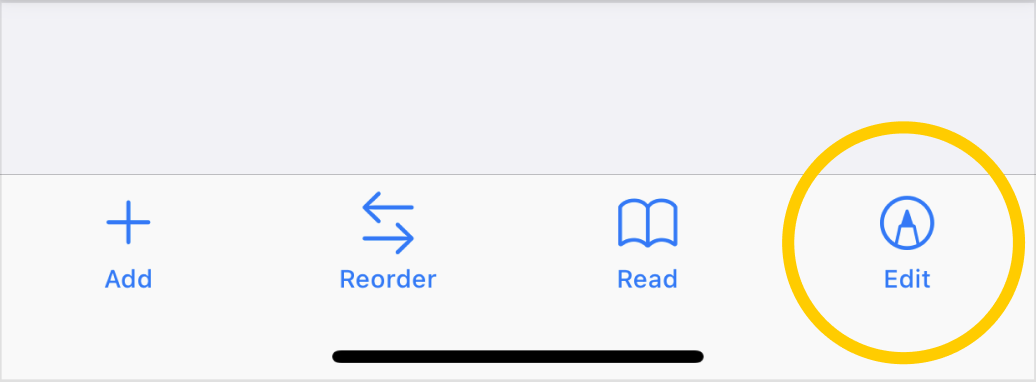
- On the page that opens, tap on the same edit button in the upper right corner again:
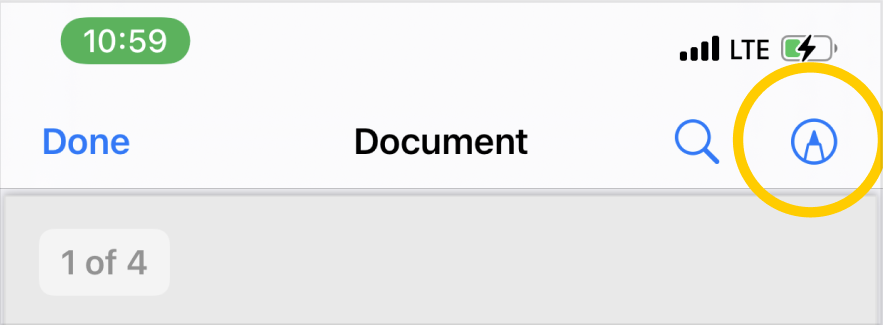
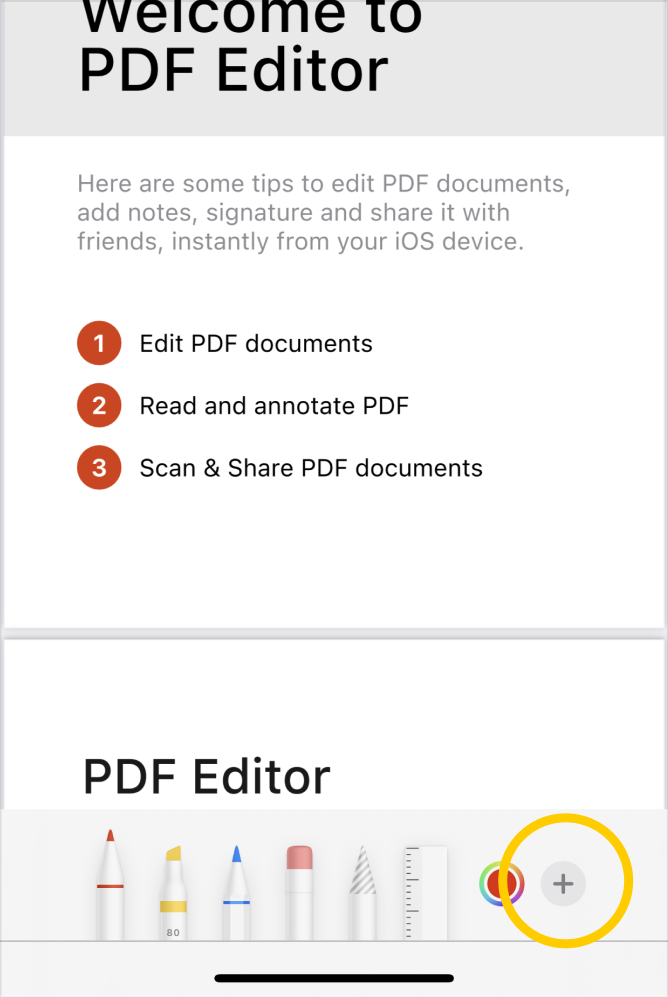
- You will see editing and annotation tools, tap on the
 button to open an additional menu with tools and select the signature tool:
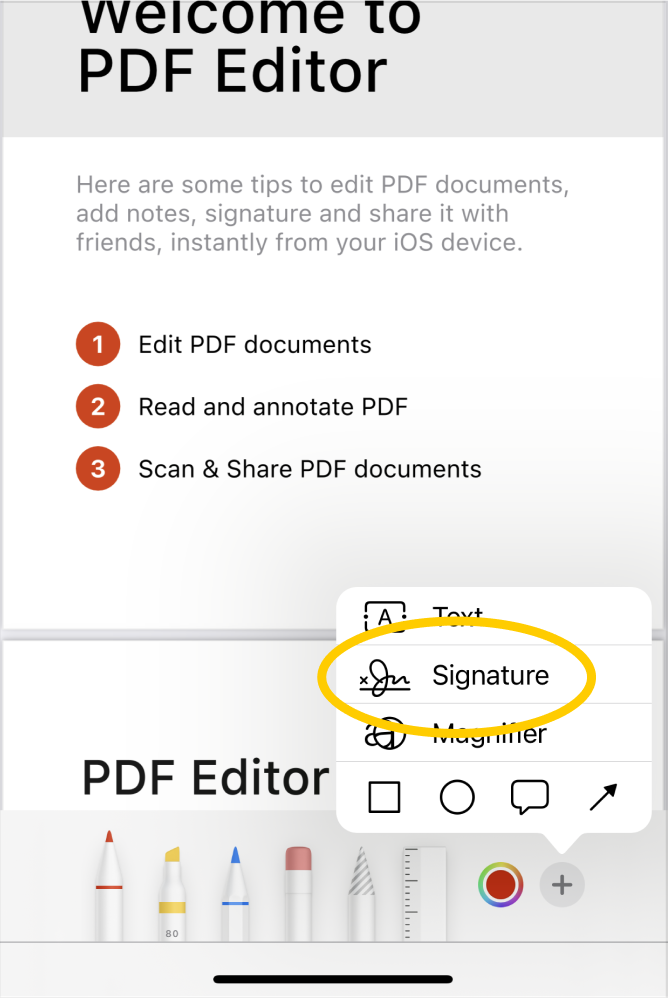
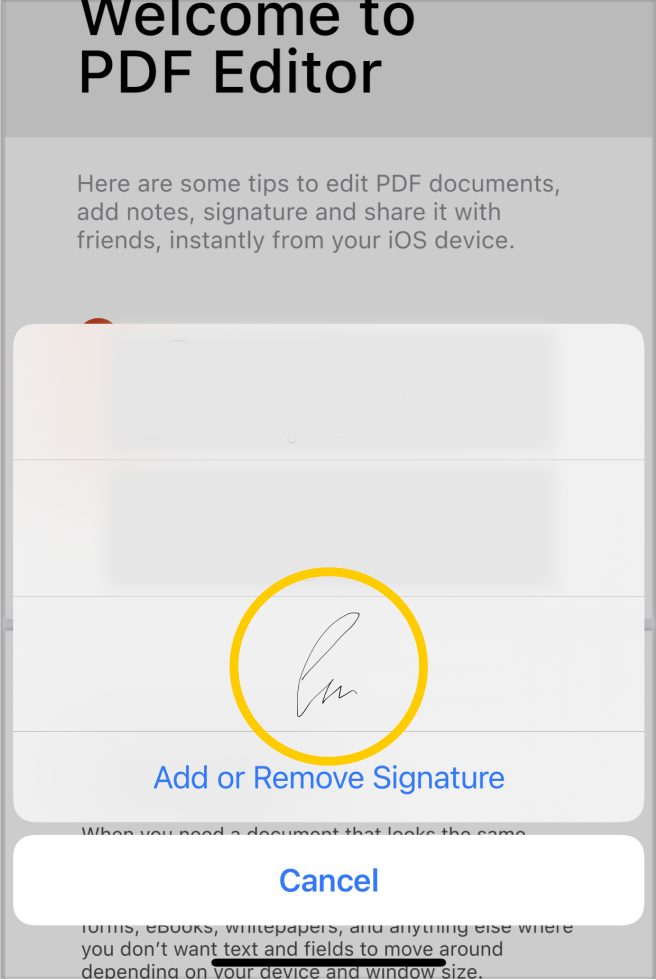
- If you already have a digital signature in iOS memory, then select the required signature from the options provided. If you do not have your own digital signature yet, then click on the button for creating a new one and draw it on the next screen:
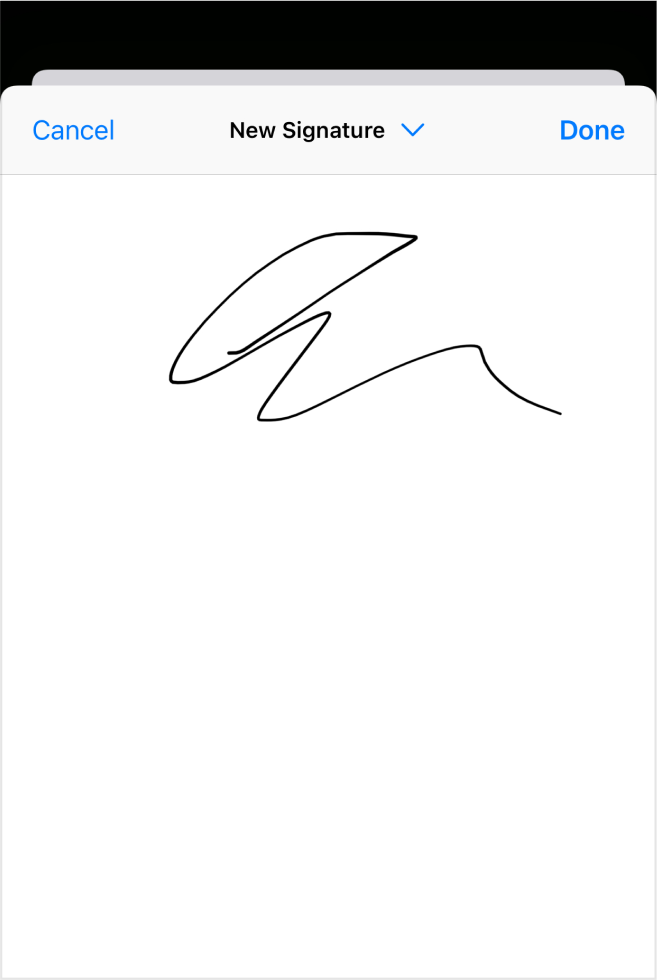
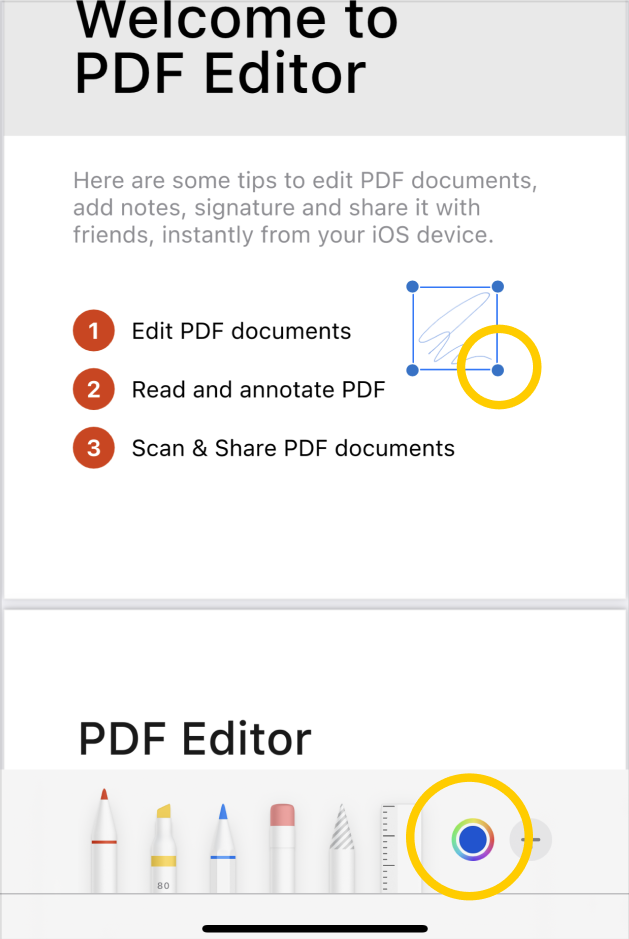
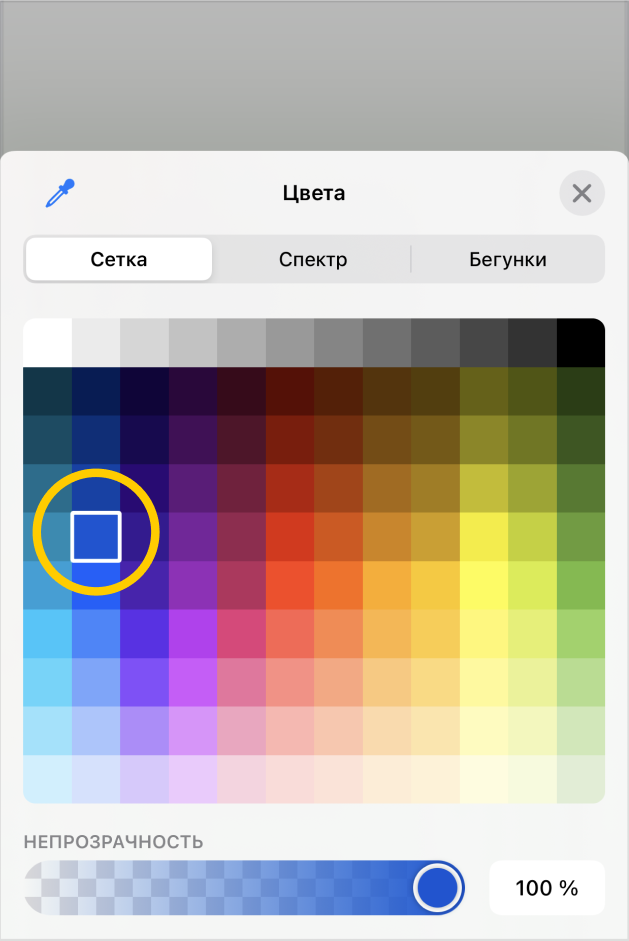
- After successfully creating/selecting a digital signature, you can place the signature anywhere on your PDF document. You can change the size, position, and color of the signature. To resize the signature, simply drag off the edge of the frame: