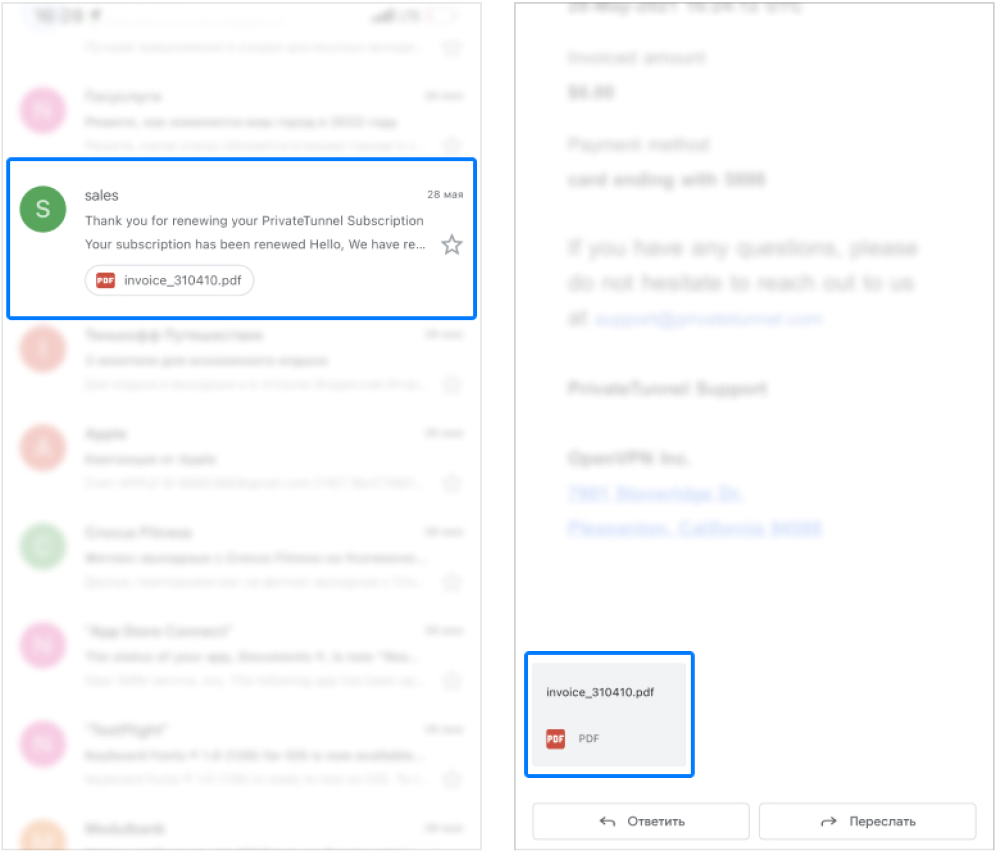
Find the needed email in any email client (iOS Built-in Mail client, Gmail, etc), open it and find attachment at the bottom of your email, and tap to open preview.
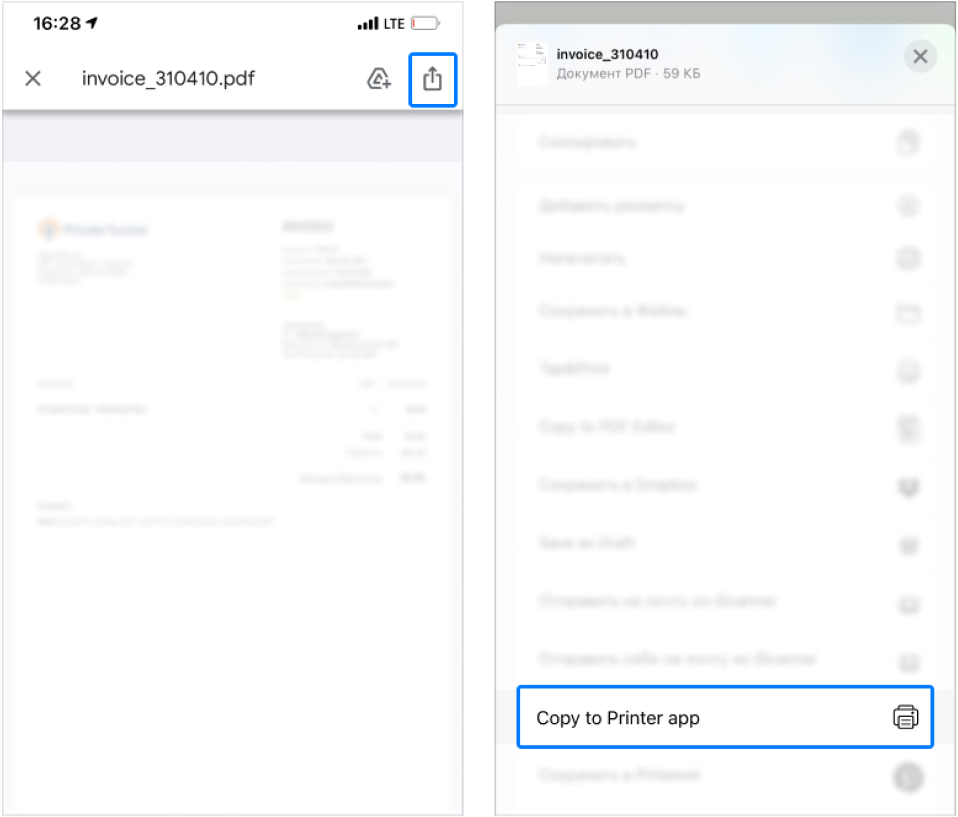
Tap on the Share button in the attachment preview screen. Scroll share action sheet to the bottom and find the Copy to Printer app button. Tap on it.
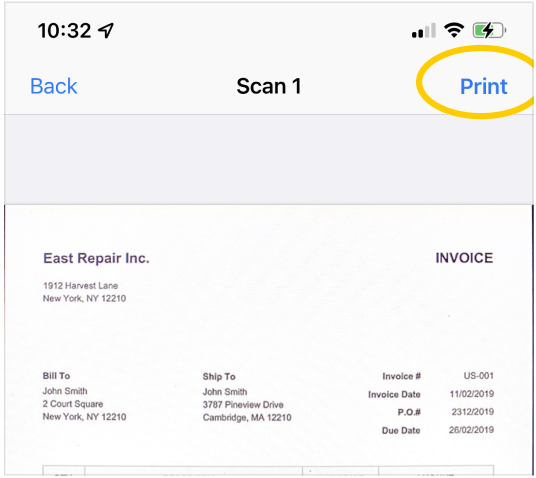
In our Printer app tap the Print button on the document preview page and follow the further instructions on the screen to set up printing.
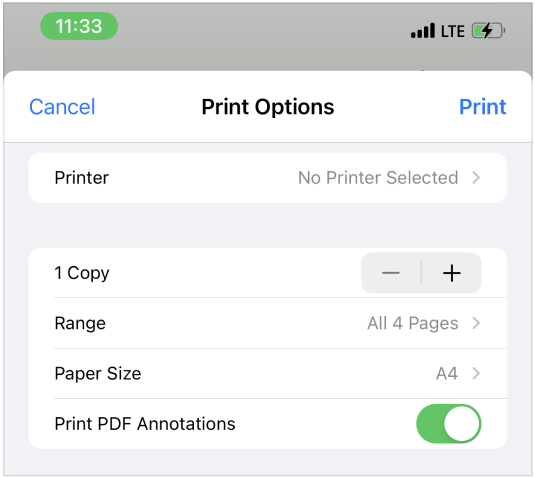
On the print settings page, you can select any connected AirPrint printer, adjust the number of copies to print, select a page size, choose whether to print a document with or without annotations and select a range of printed pages.
Please note that to print documents, your printer must be connected to the same wifi network as your iPhone.