
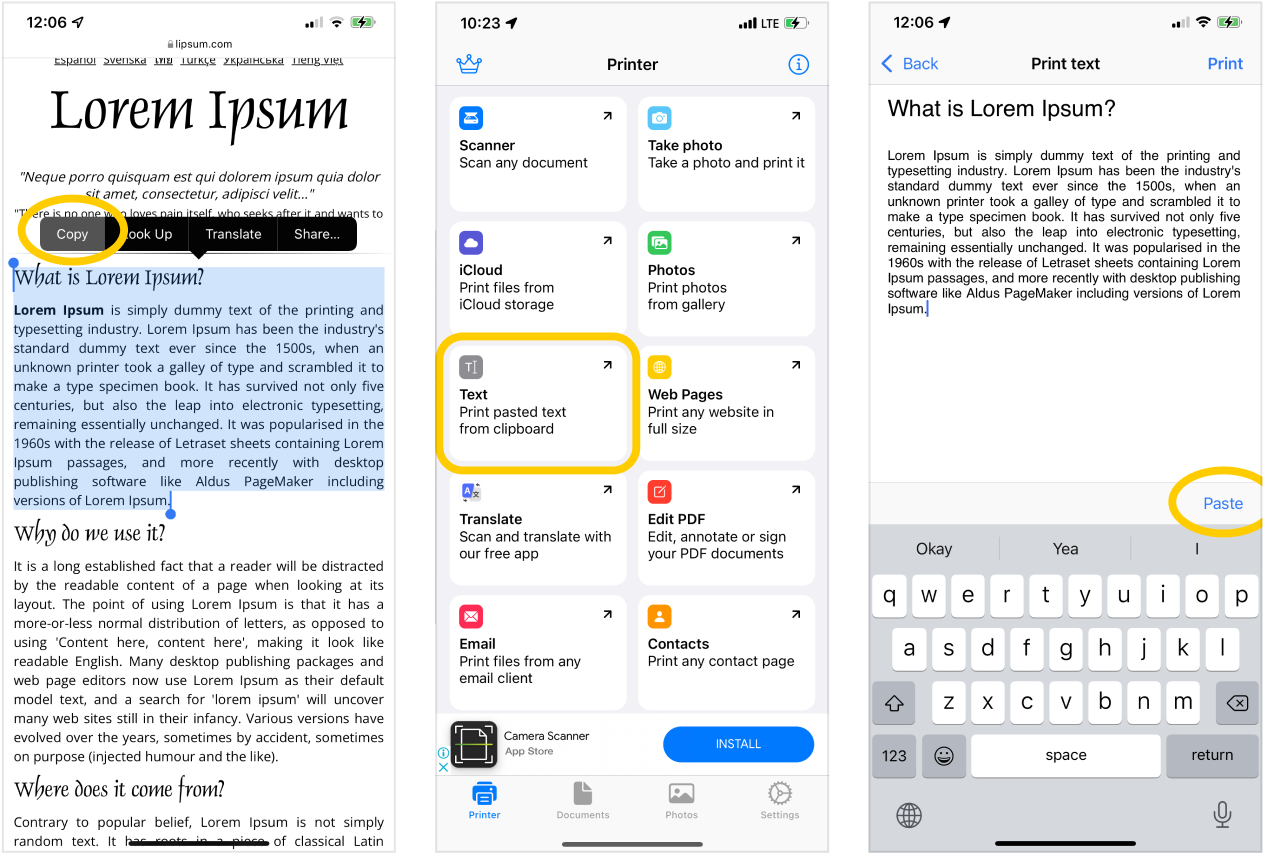
- Copy any part of the text on any website or anywhere across your iOS device and in our app, on the main Printer
 tab - tap Text
  and you will be redirected to the text editor module, tap on the Paste button on your keyboard and copy text will be pasted to this text editor:
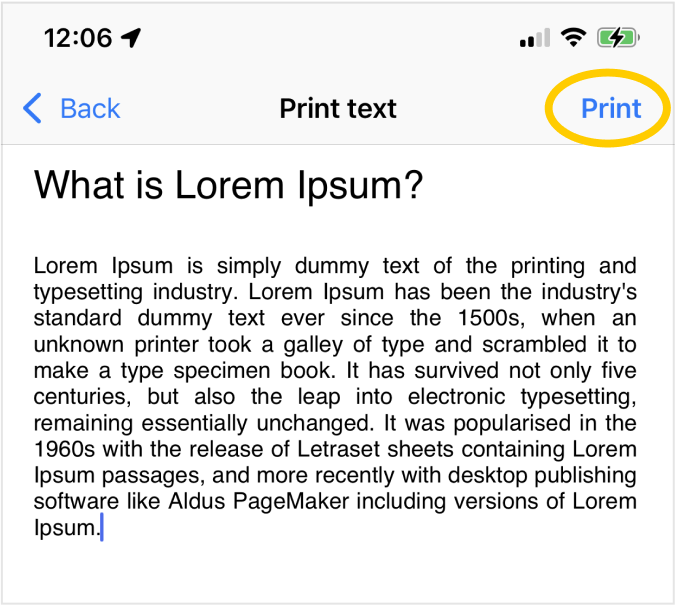
- You can edit the pasted text as you want and then you are done - tap on the Print button and you will be redirected to the print settings page:
- On the print settings page, you can select any connected AirPrint printer, adjust the number of copies to print, select a page size, choose whether to print a document with or without annotations and select a range of printed pages.
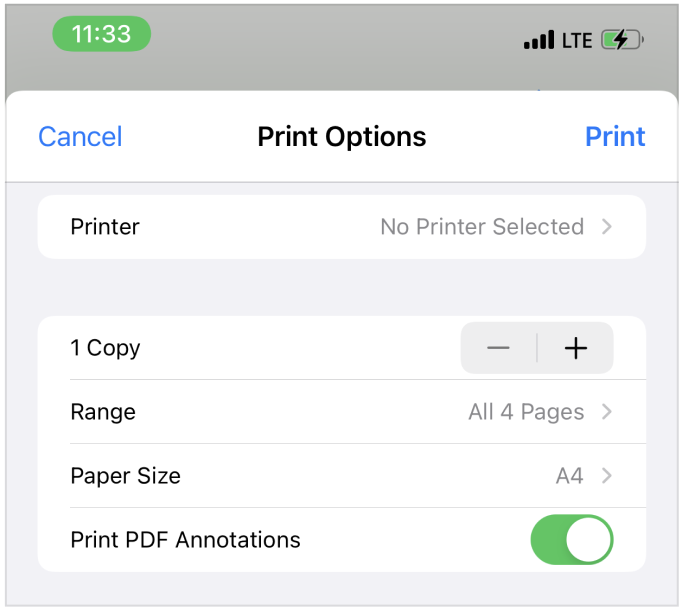
- Please note that to print documents, your printer must be connected to the same wifi network as your iPhone.